01
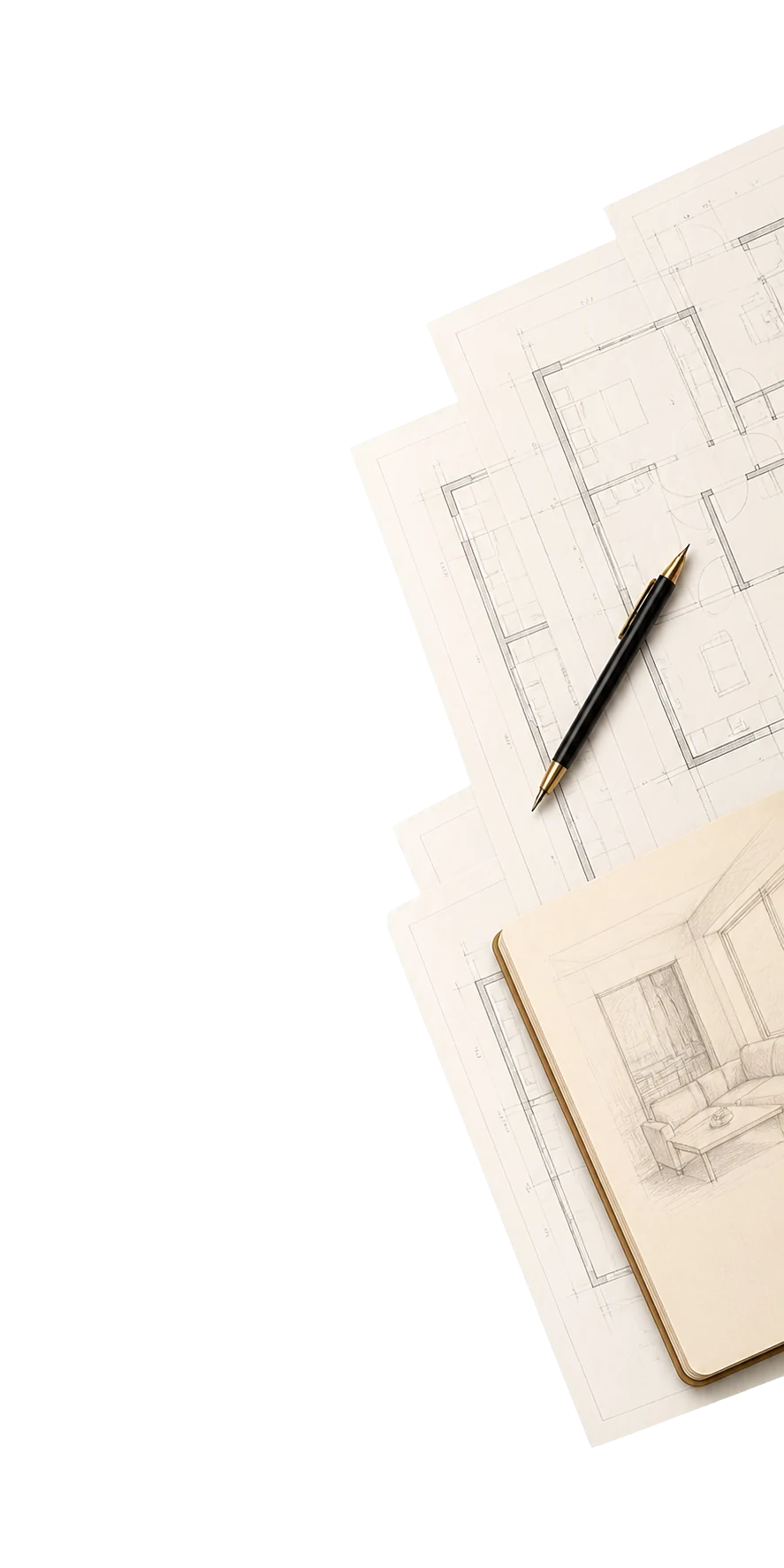
Upload your floor plan
Upload a clear plan image, scan, screenshot, or straight-on photo of the floor plan you already have.
AI Floor Plan
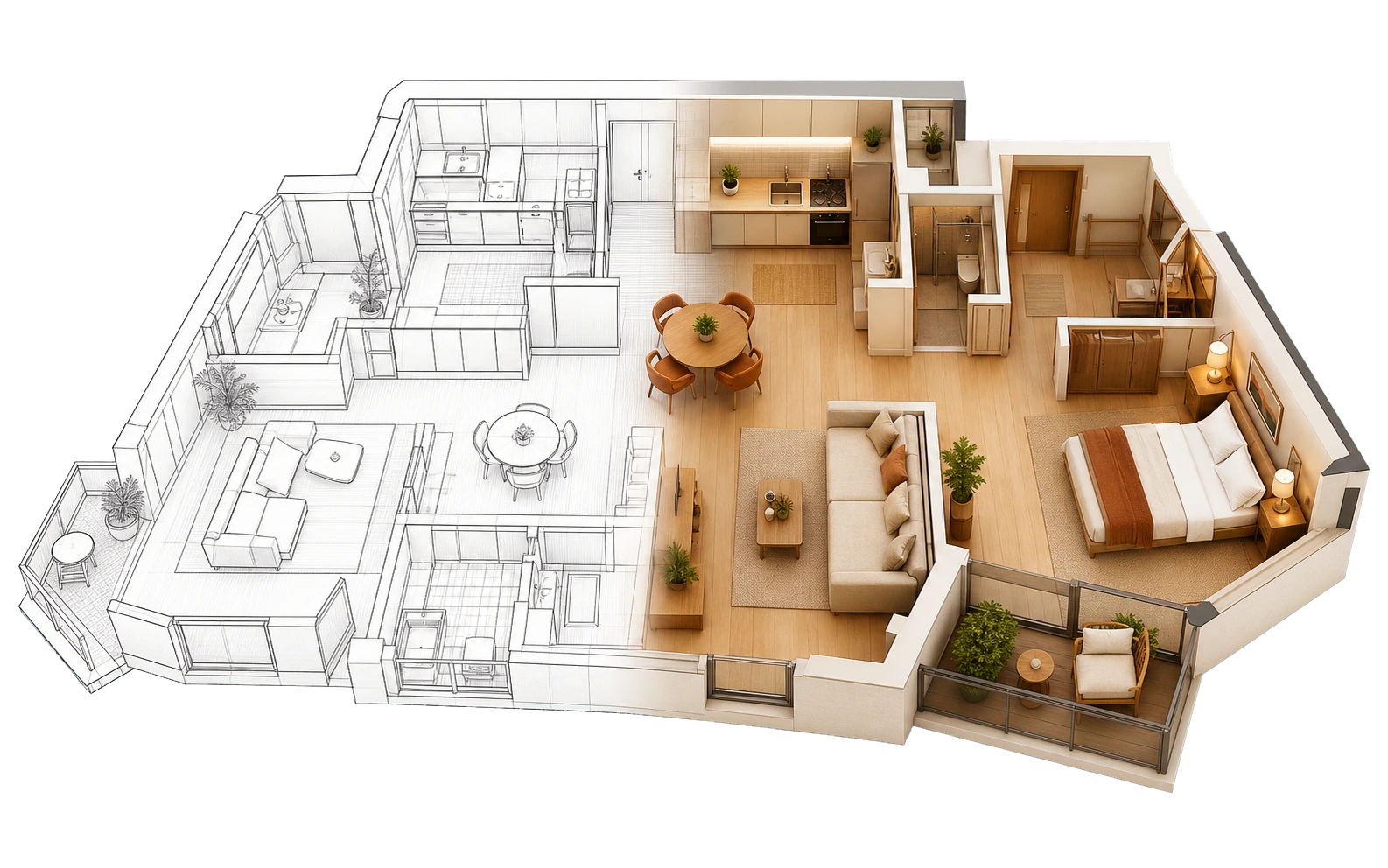
Upload the floor plan you already have, select a room and style, then explore a 2D furniture layout, photorealistic 3D render, and optional 360° view in your browser.
Best experienced on desktop
The floor-plan studio needs a larger screen. Open this page on your computer — or try one of our mobile-friendly tools:

Shown after upload
Start with an existing plan, focus on one room, and compare layout and visual directions in three steps.
01
Upload a clear plan image, scan, screenshot, or straight-on photo of the floor plan you already have.
02
Select a room, choose a style, and add preferences for furniture, materials, colours, or everyday use.
03
Review a 2D furniture layout, photorealistic 3D render, and optional 360° view, then adjust a selected area if needed.
Use an existing floor plan to explore room layouts and visual directions before you make design decisions.

Upload an existing floor plan image so HomeDesign can identify rooms and use the plan as the starting point for layout exploration.
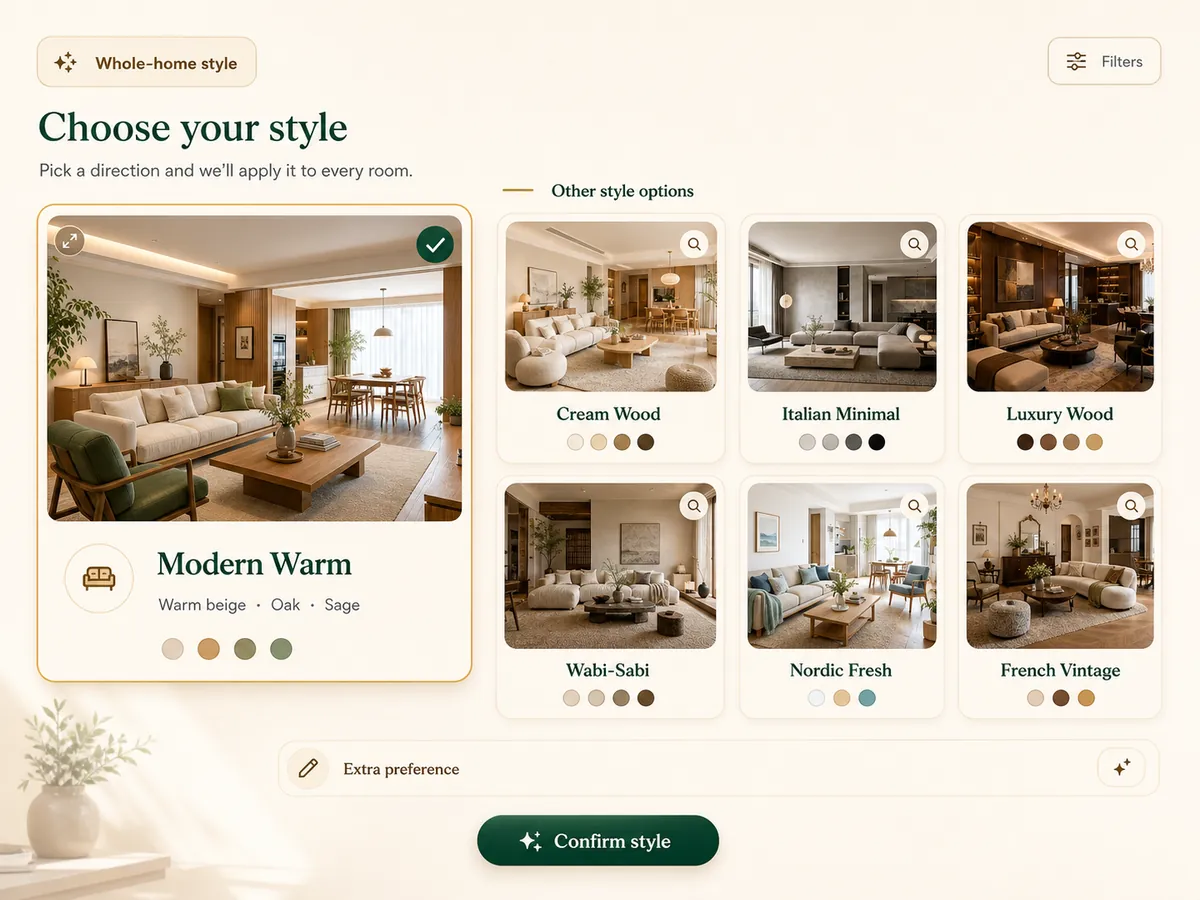
Compare room styles, colour palettes, and furniture directions before generating your layout and render.
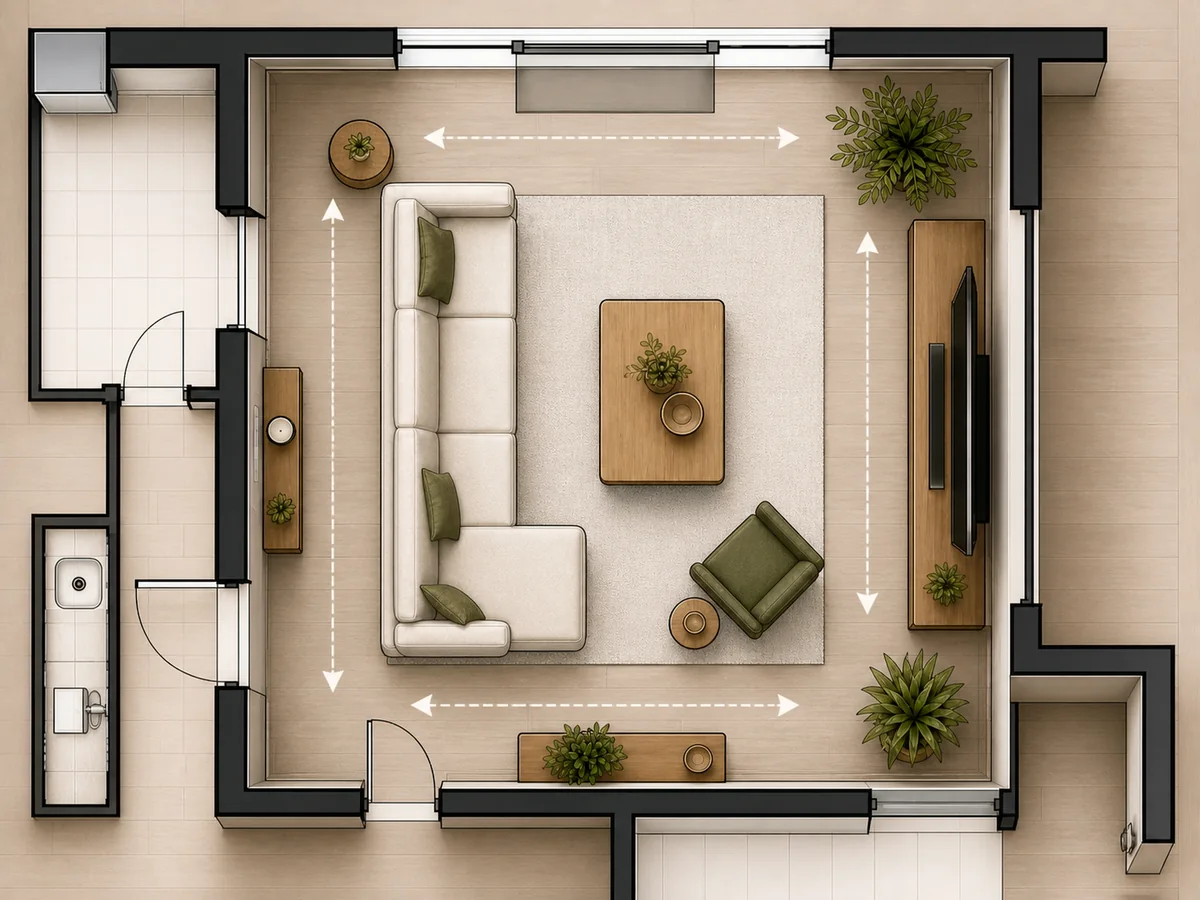
Turn the selected room into a clear 2D furniture layout to compare placement, zones, and circulation before viewing it in 3D.
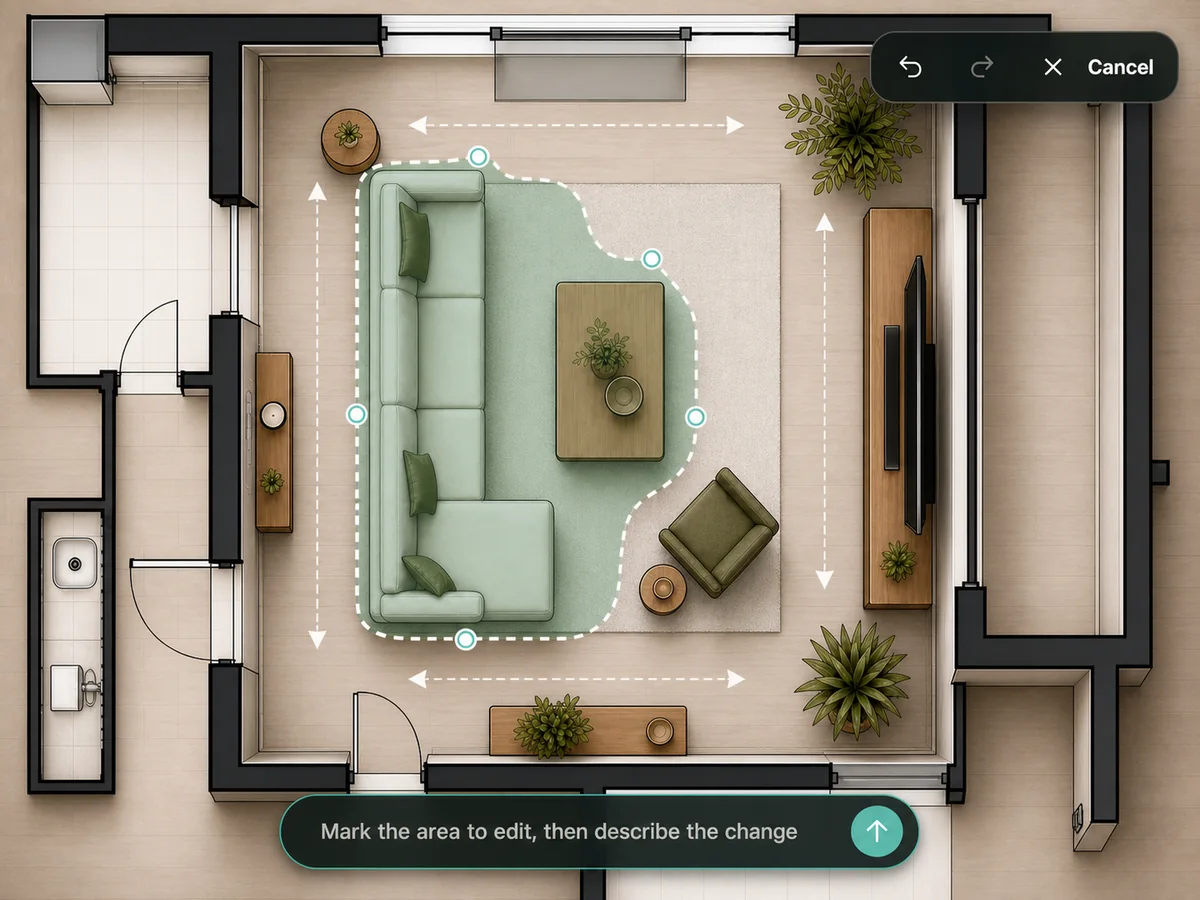
Mark the area you want to refine, then describe a local adjustment when a generated room needs a small change.

Preview furniture, materials, lighting, and style choices in a photorealistic room render.
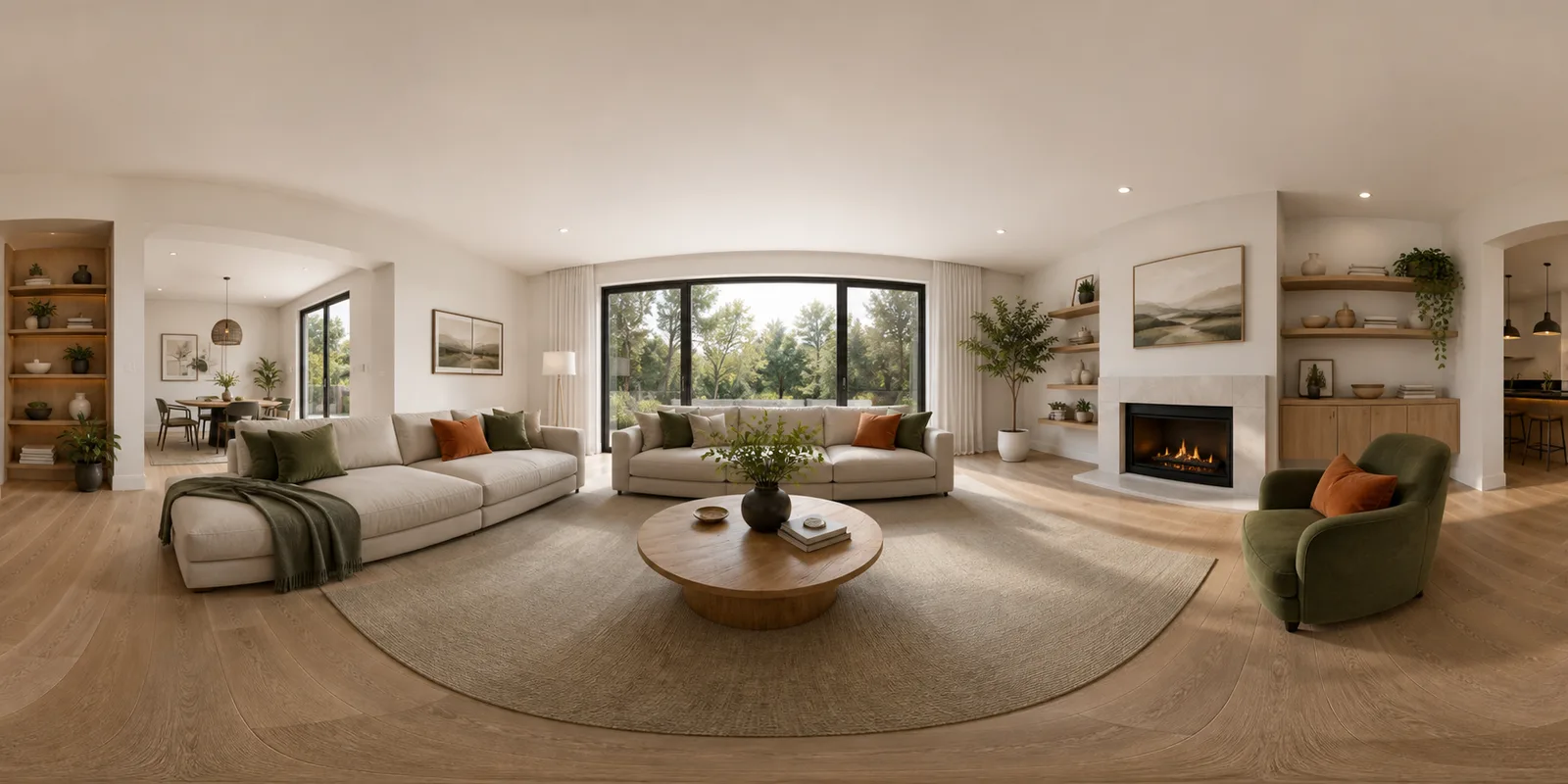
Open an optional panoramic view for a more immersive look at the selected room direction.
See how an existing floor plan becomes a room layout, 3D render, and optional 360° view in a short video.
Browse room-layout and render examples created from uploaded floor plans using HomeDesign.
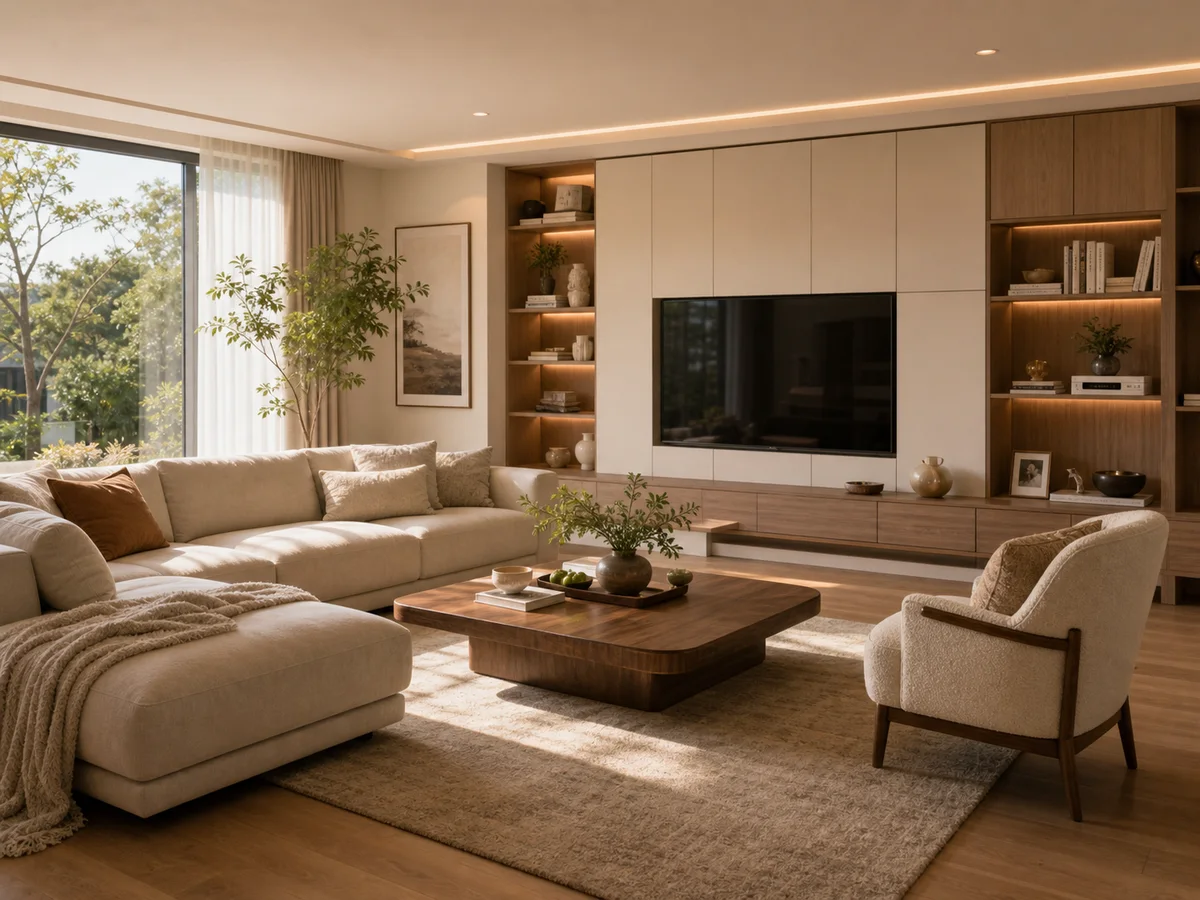
Warm wood living room with built-in storage, a deep sofa, and soft natural light.
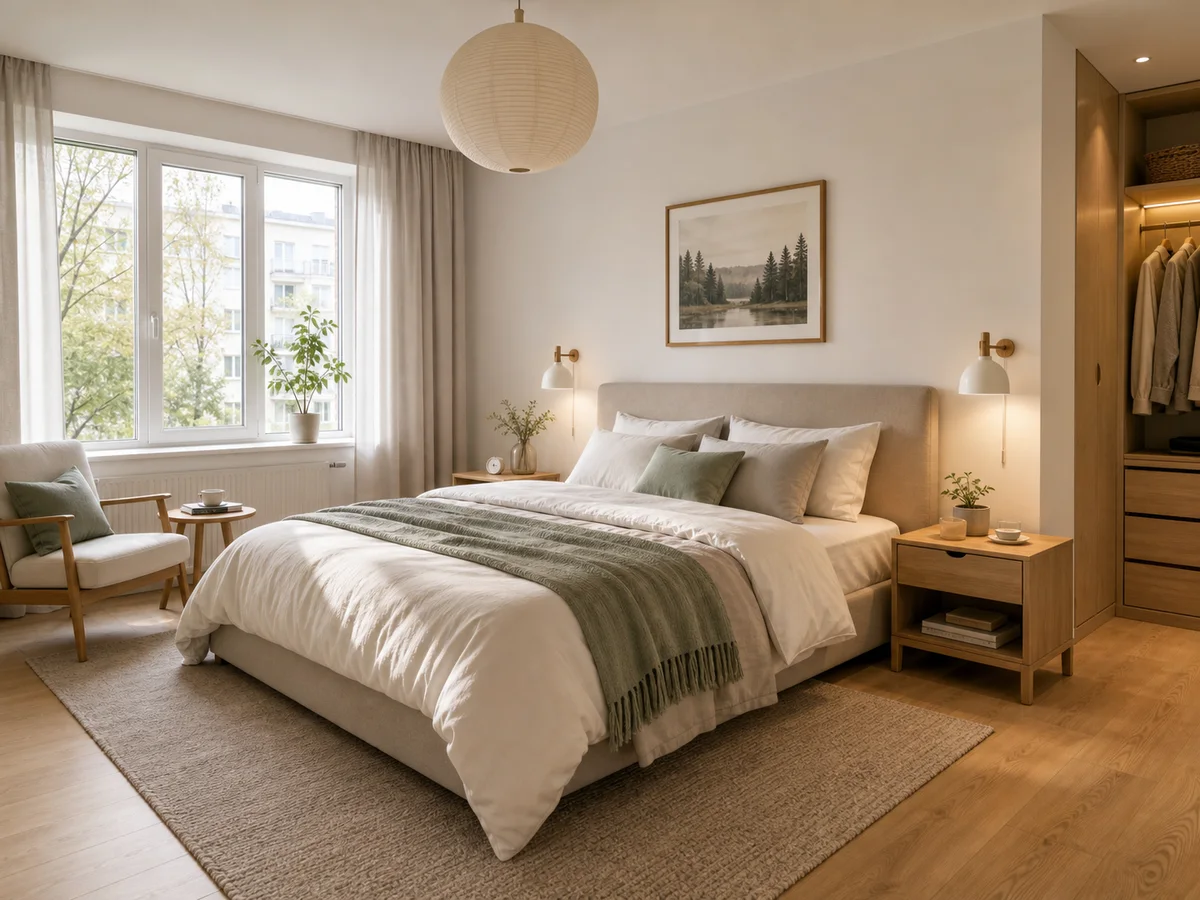
Light wood bedroom with layered bedding, wardrobe storage, and calm morning light.
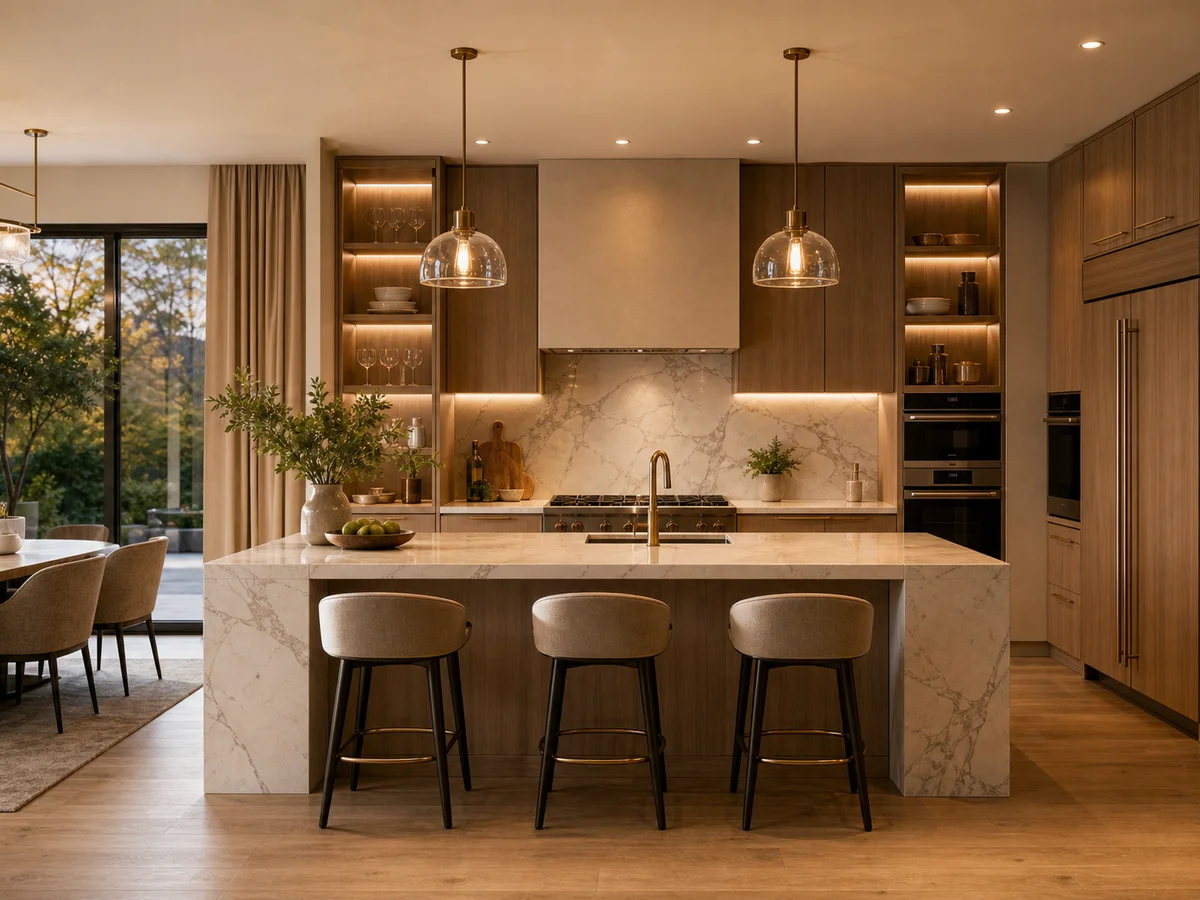
Marble island, warm wood cabinetry, and subtle brass details for an open kitchen.
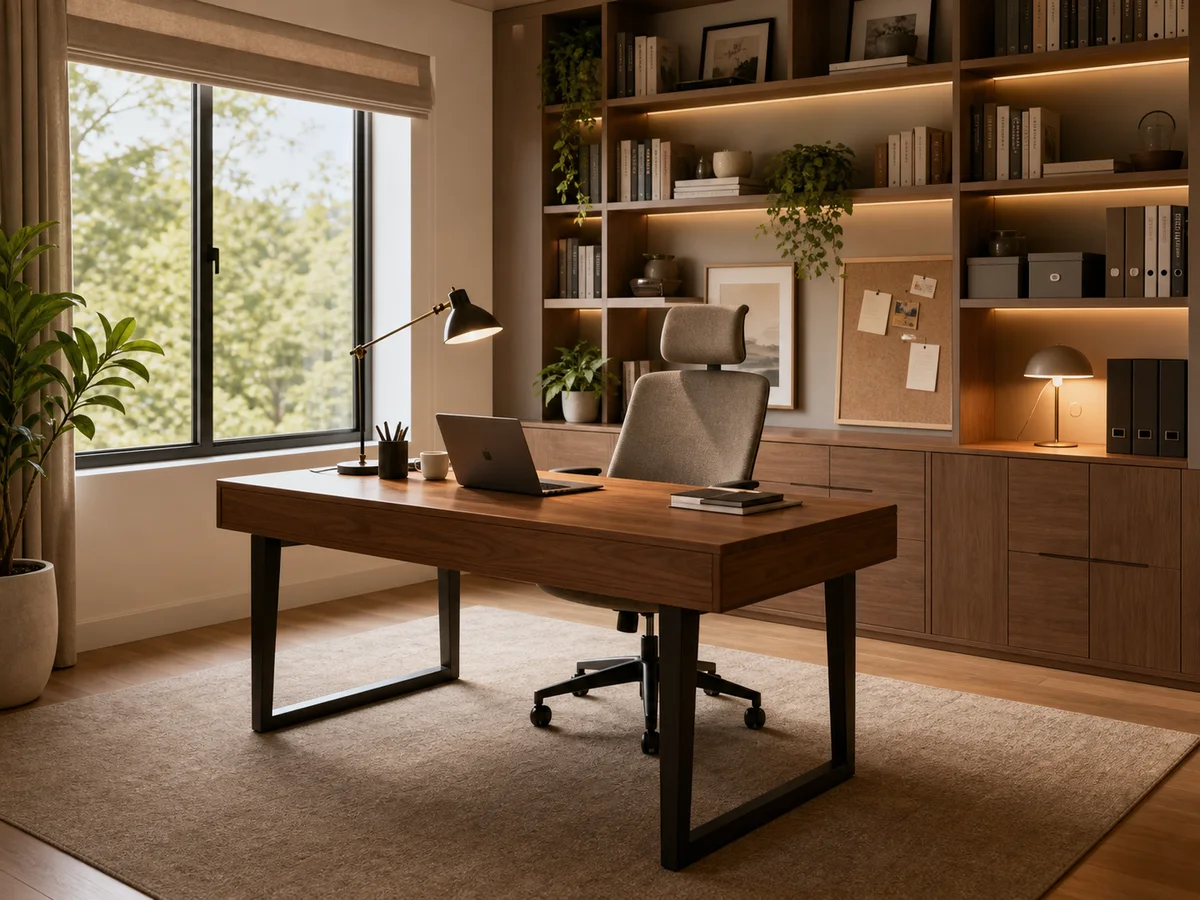
Window-side desk, built-in bookshelves, and warm task lighting for focused work at home.
Warm wood living room with built-in storage, a deep sofa, and soft natural light.
Light wood bedroom with layered bedding, wardrobe storage, and calm morning light.
Marble island, warm wood cabinetry, and subtle brass details for an open kitchen.
Window-side desk, built-in bookshelves, and warm task lighting for focused work at home.
Choose the package that fits your project.
Includes:
Includes:
Includes:
Includes:
Room concept
2D room plan
Realistic render
360 preview
Practical answers about uploading an existing plan, choosing a room and style, and refining generated room concepts.
Upload a clear floor plan image, scan, screenshot, or straight-on phone photo. Results work best when room boundaries, doors, windows, and labels are easy to see.
HomeDesign uses your uploaded floor plan as the starting point. The selected room, proportions, and visible openings guide the layout, render, and optional 360° view. Review results carefully, especially when the plan is blurry or incomplete.
HomeDesign generates a 2D furniture layout, a realistic room render, and an optional 360° panorama for the selected room. You can compare the results and refine a selected area if something needs adjustment.
Living rooms, bedrooms, kitchens, home offices, dining rooms, bathrooms, and open-plan areas work best. Very irregular rooms, missing measurements, or unclear walls may need a cleaner plan before generating.
Yes. Choose a style direction and add preferences for the selected room, such as mood, materials, colours, furniture needs, or daily use. HomeDesign uses this input to shape the layout and visual concept.
Yes. Mark the area you want to change and describe a local adjustment, such as replacing furniture, changing materials, or refining a detail in the room render.
Yes. Results are useful for discussing ideas, comparing directions, and preparing a clearer renovation conversation. They are visual planning references, not construction drawings or permit-ready documents.
Yes. You can start in the browser and try the AI Floor Plan workflow. Some generation steps may require credits or a paid plan depending on usage and result type.

Upload an existing floor plan and explore a room layout and visual direction for a real space.