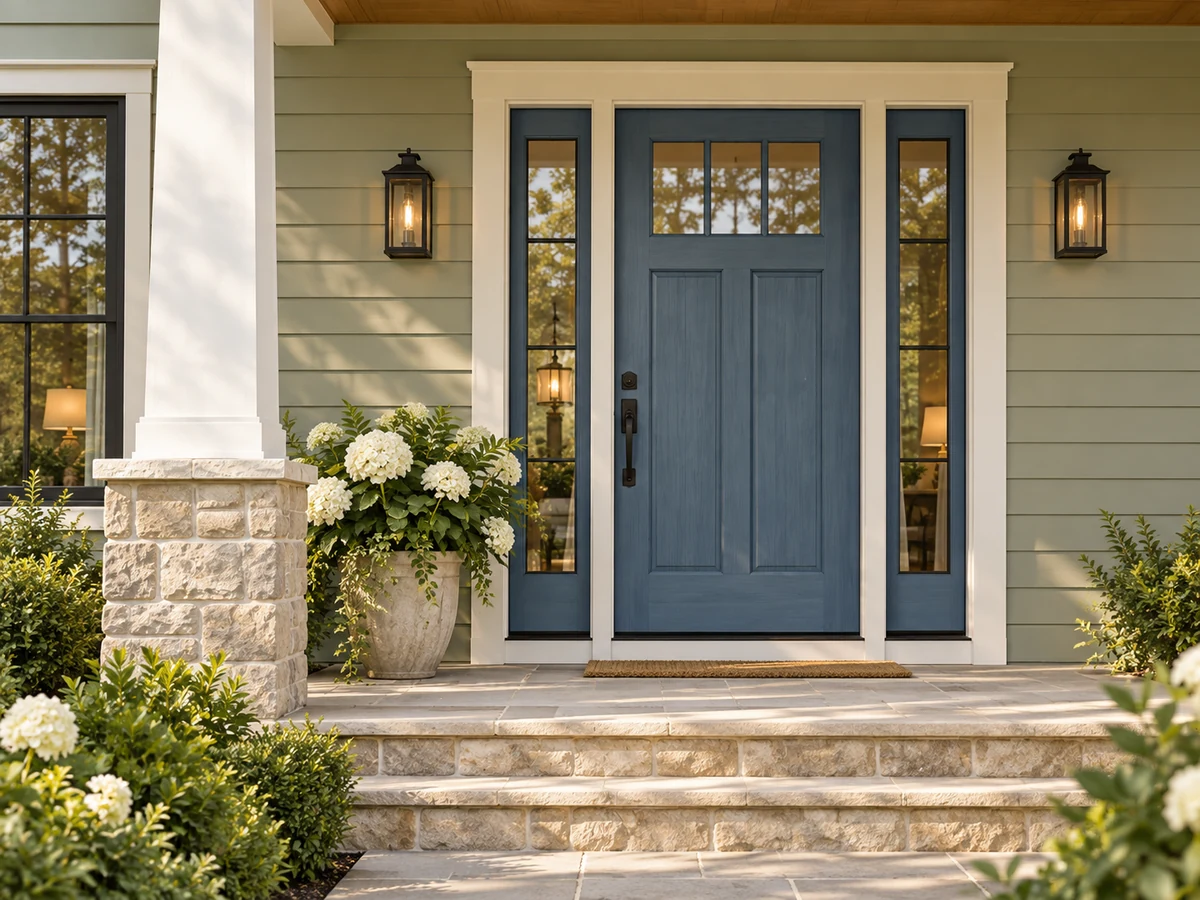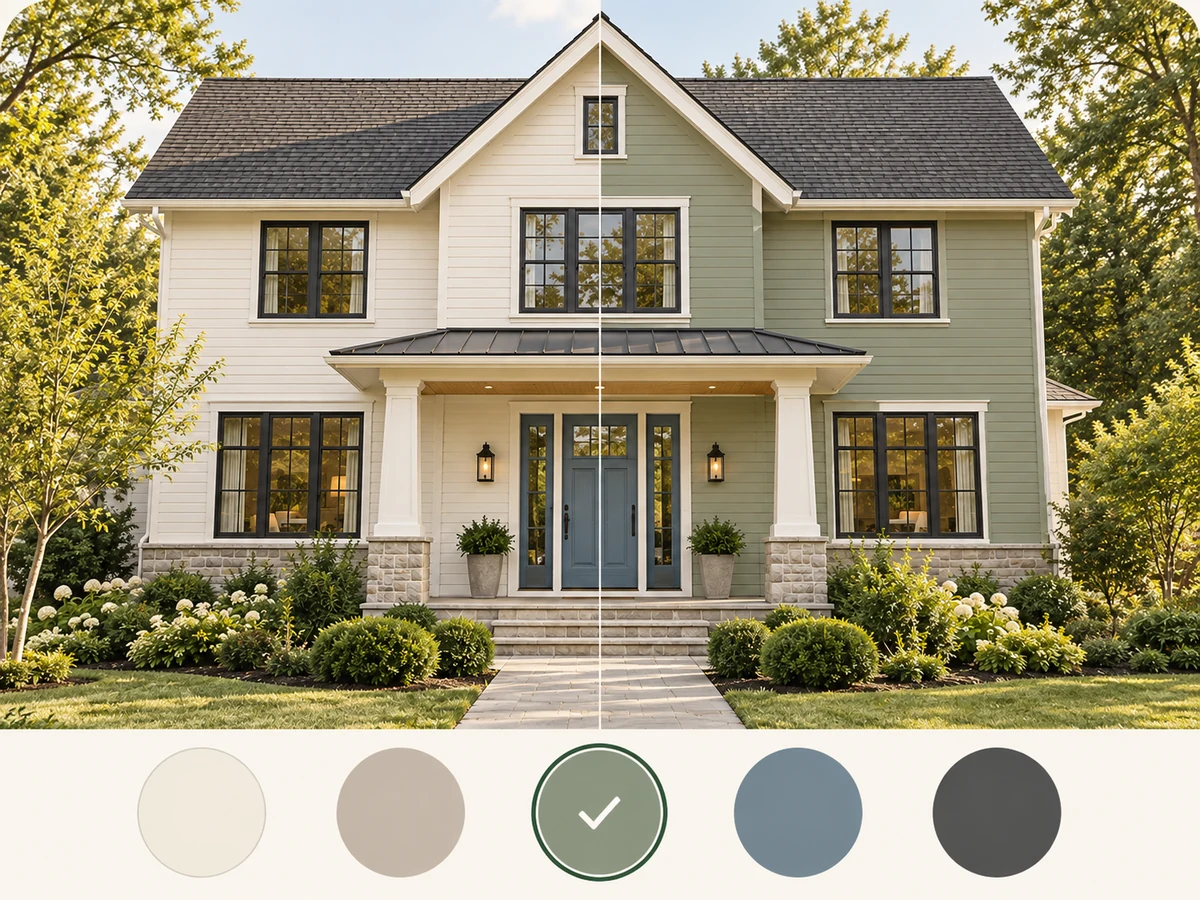
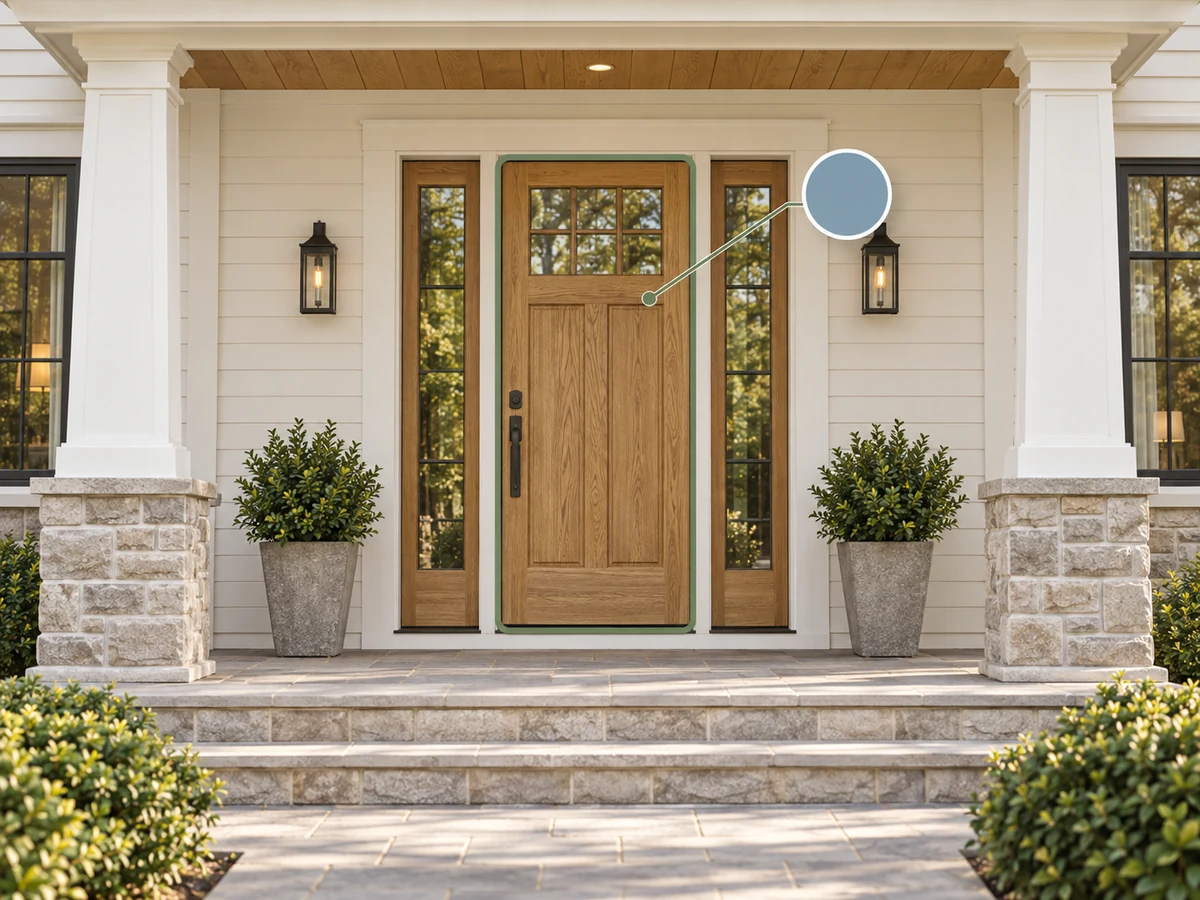
Choose one area
Try main walls, trim, a front door, a garage door, or shutters. Each step changes one selected area.
Exterior paint visualizer
Upload your house photo and preview a new paint color on one area. Continue from the selected result to build your scheme, or return to an earlier version.
Choose an area and a color. Keep refining any selected photo.
Try a sample house
A paint decision you can see on your own house before the first brush stroke. The illustrations below are conceptual examples of each capability.
Try main walls, trim, a front door, a garage door, or shutters. Each step changes one selected area.
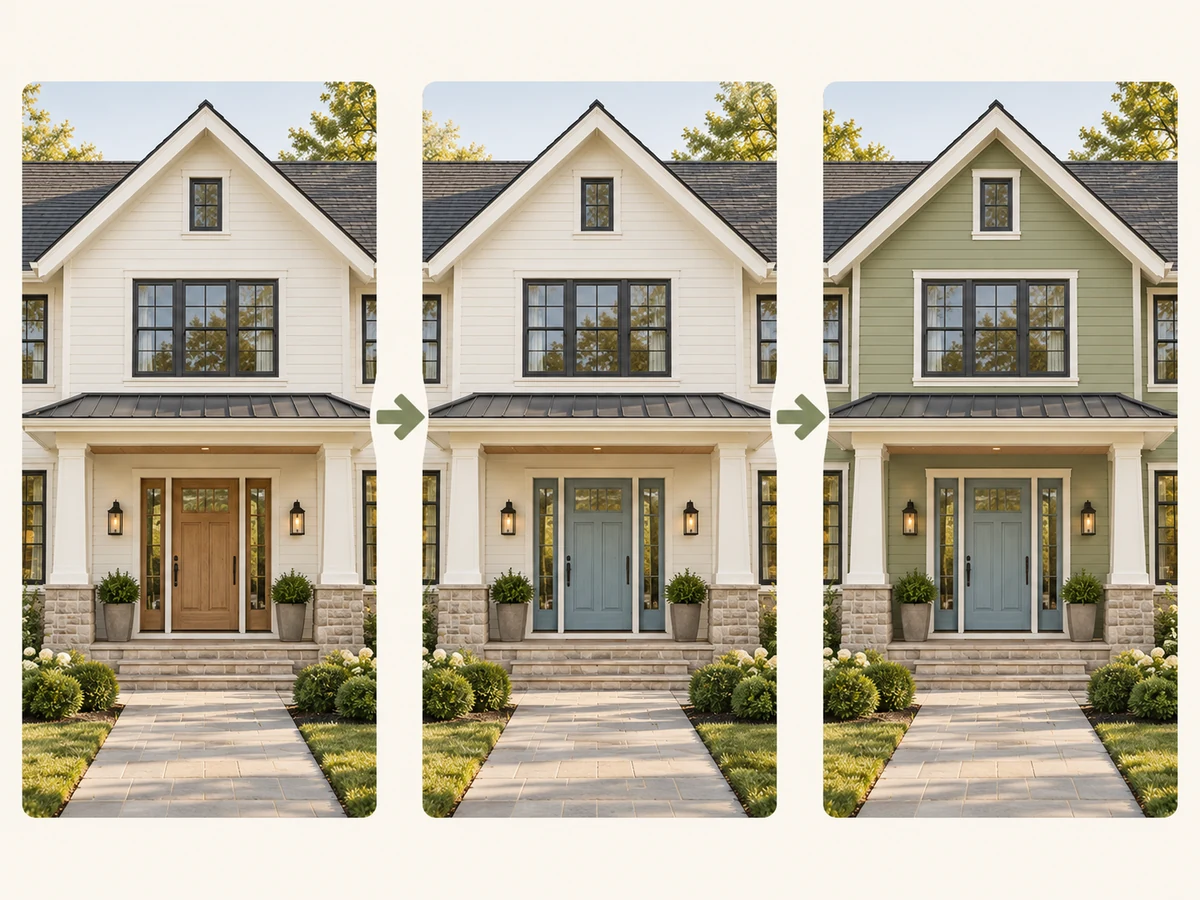
Start with the door and then change the walls using that result. Your earlier schemes stay available during this session.
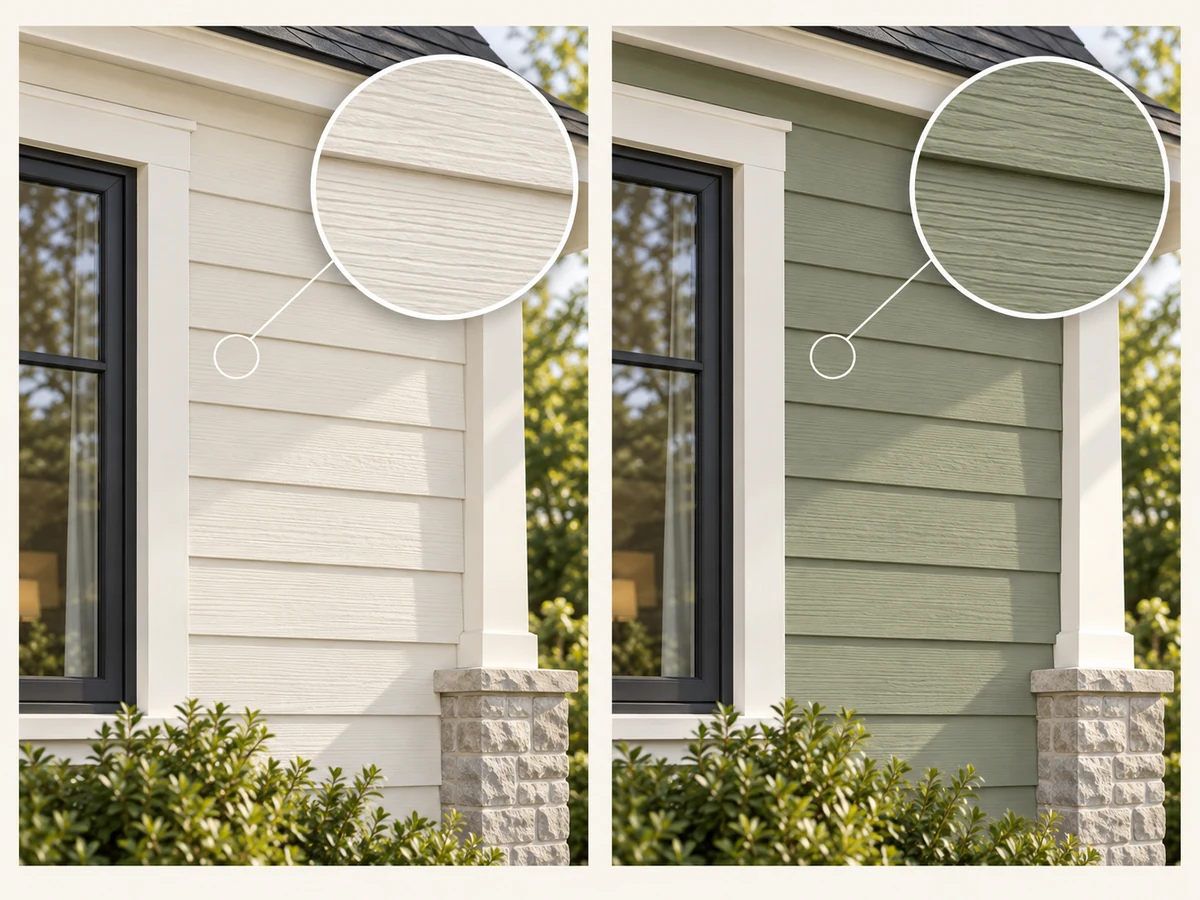
The AI is instructed to retain existing textures and structure. Compare each preview with its input to check for unwanted changes.
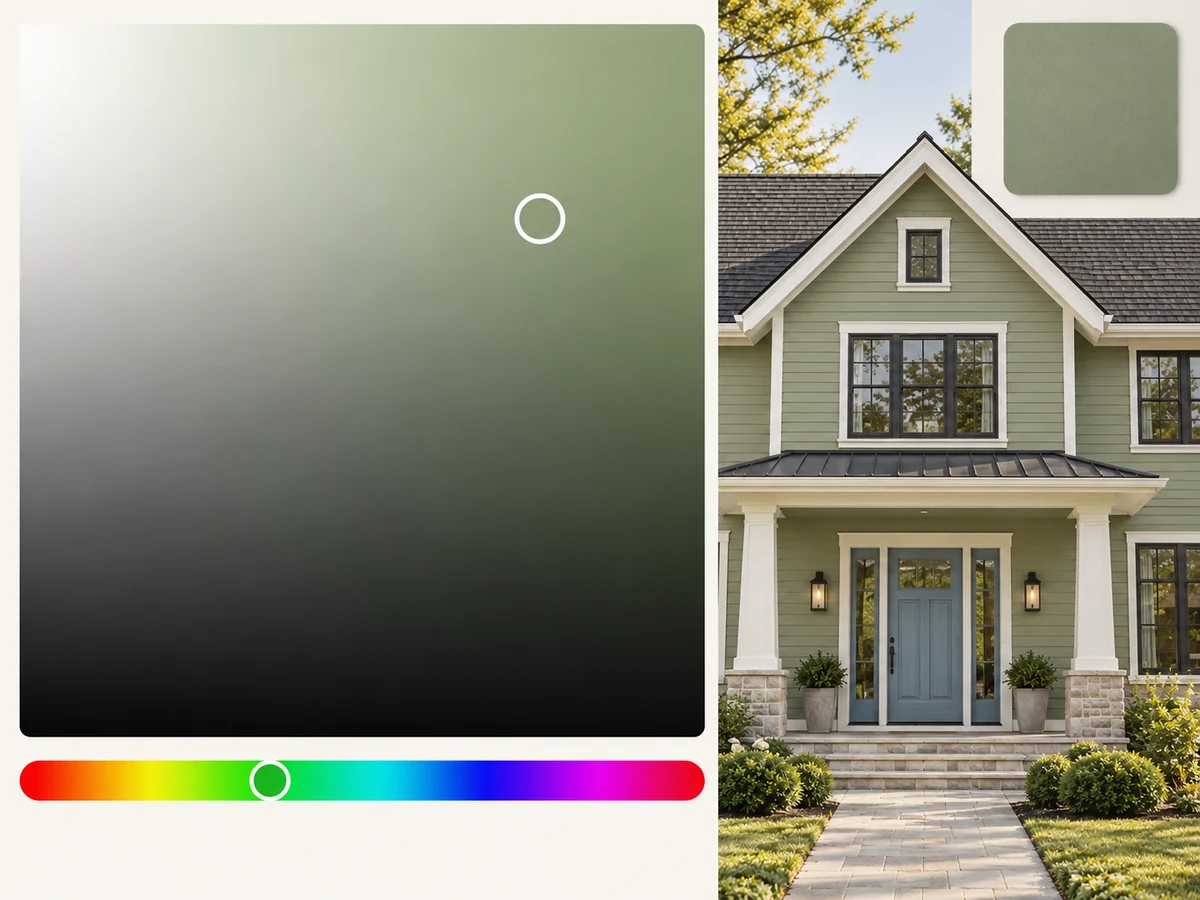
Use a preset, explore the color field and hue slider, or enter a HEX value. Color selection itself does not use credits.
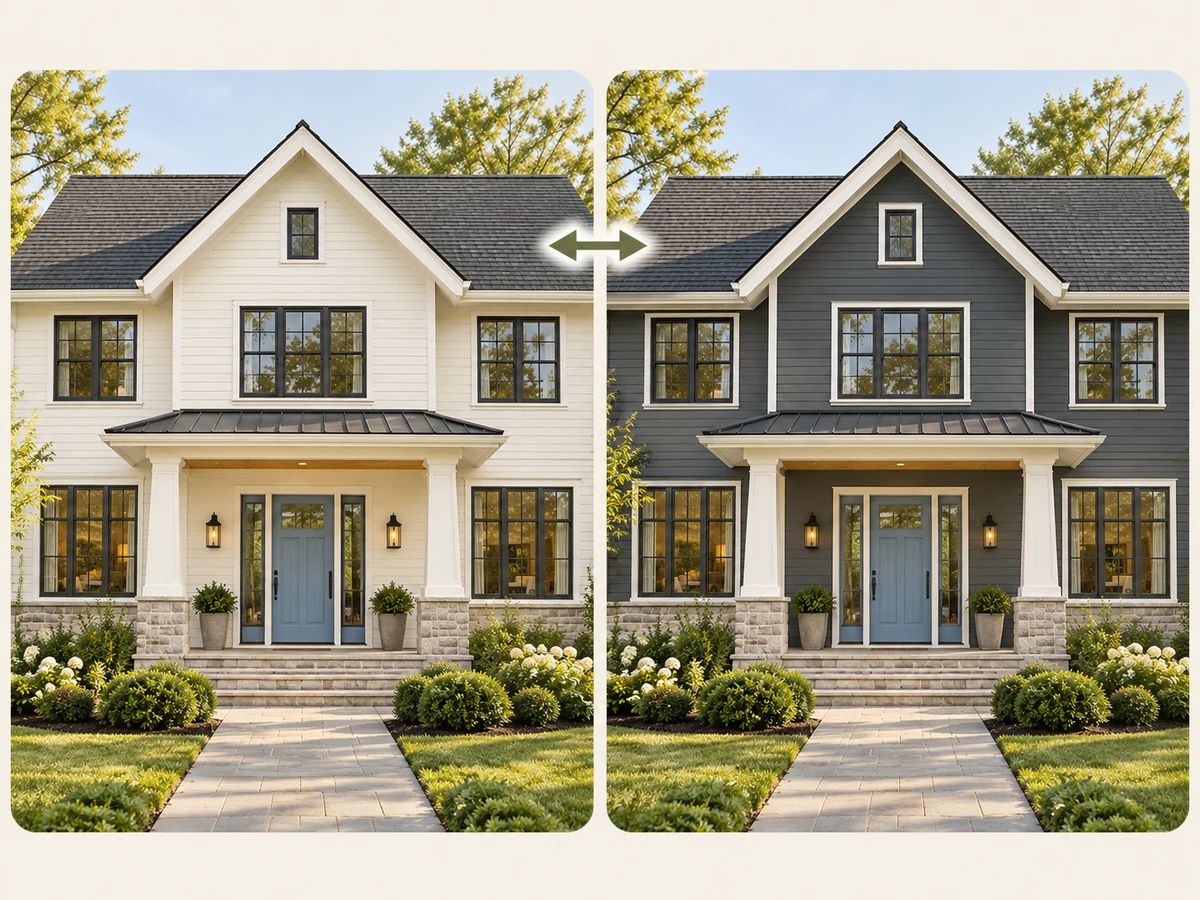
Switch between the result and the image used for this step. Choose a history card when you want to change the next starting image.
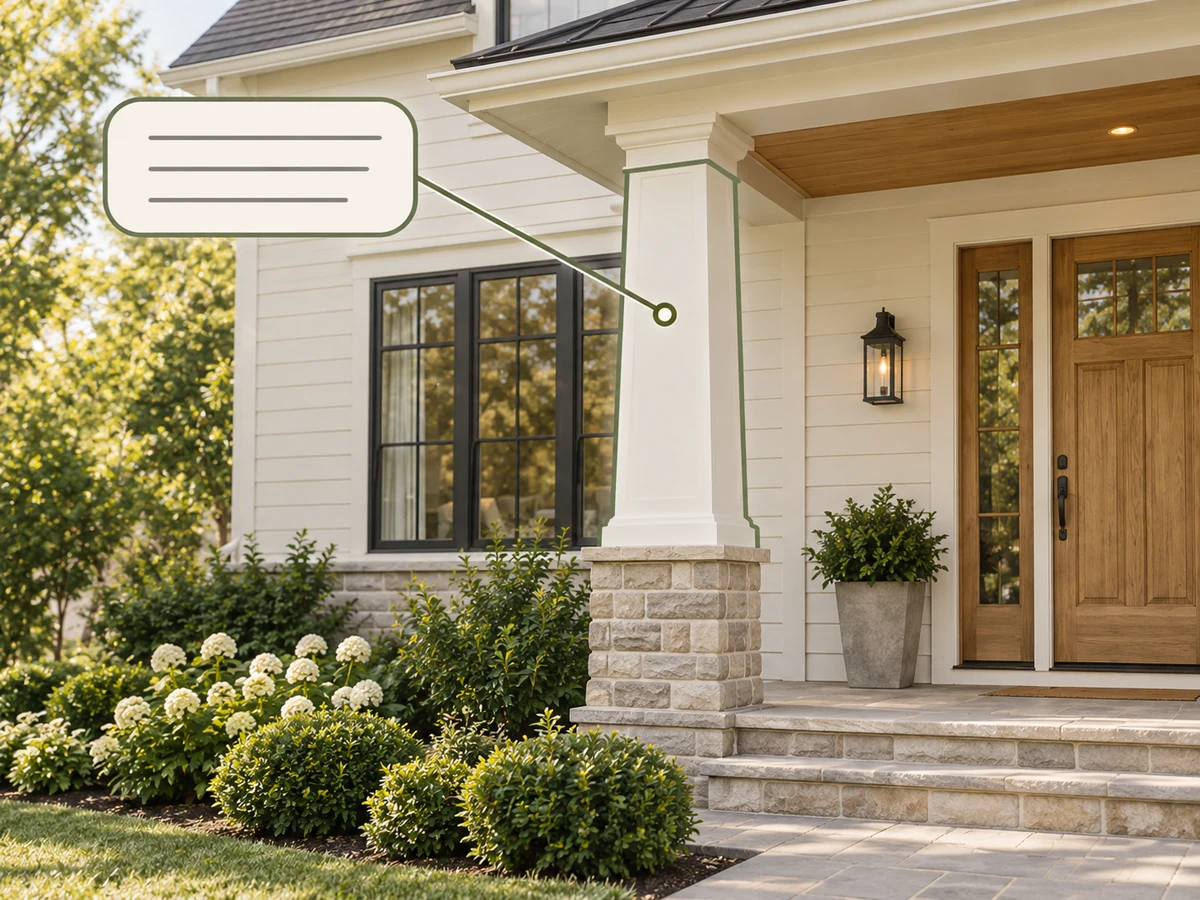
Describe a visible target, such as a porch column or boundary wall, in up to 1,000 characters. Clear descriptions help, but AI selection may be imperfect.
Upload a photo, choose one area and color, generate a preview, then continue from the selected result. The illustrations below are conceptual examples of the workflow.
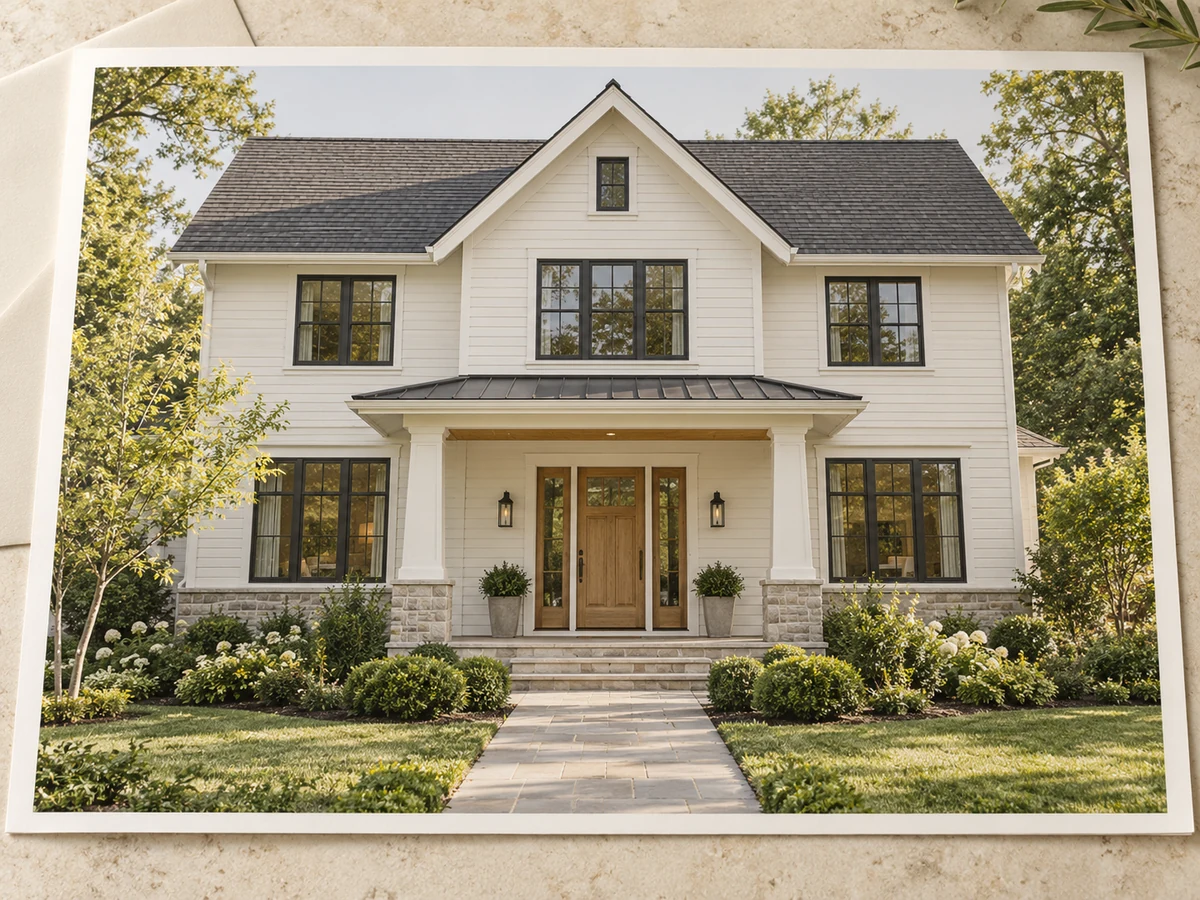
Upload a clear daylight photo with the area you want to repaint visible, or choose a sample house.
Choose one area or describe a custom target. Pick a preset or custom color, then select a model and image ratio.
Generate a preview, compare it with this step’s input, and download the result. Select a history card to choose the starting image for your next change.
Give the exterior paint visualizer a daylight photo that shows the whole area you want to repaint. Choose a view with clear doors, wall edges, and trim. Avoid strong backlighting and objects covering the target. A wider view also helps you judge how a new color sits beside the roof, garden, and neighboring surfaces.
Look at roof tiles, exposed brick, stone, and window frames before choosing paint. Existing materials can make wall colors feel warmer or cooler. Compare a light neutral, a muted green, and a deeper shade rather than changing everything at once. Use the presets as starting points, or enter a HEX value when you already have a digital color reference.
Use the exterior paint visualizer to explore one question at a time: would a darker door suit the entrance, or would lighter walls balance a dark roof? Choose one area and one color for each generation. Keeping the target simple makes the intended change easier to assess. Compare the result with its input before deciding which part of the house to try next.
Select a door result when you want to try a wall color alongside it. Select the original photo when you want a fresh starting point instead. Earlier schemes remain available during the current page session, so you can compare alternatives without treating every result as the next step. Download useful previews before leaving the page; the history strip is not a permanently saved project.
Treat the exterior paint visualizer as a way to shortlist colors. Inspect nearby trim, textures, and any color chosen in an earlier step, since AI can introduce unintended changes. Screens and daylight also affect how a shade appears. Test real paint samples on the intended surface at different times of day before choosing your paint.
Choose the package that fits your project.
Includes:
Includes:
Includes:
Includes:
Nano Banana
Nano Banana 2 1K
Nano Banana 2 2K
Nano Banana 2 4K
Nano Banana Pro 1K
Nano Banana Pro 2K
Nano Banana Pro 4K
GPT Image 2 Low
GPT Image 2 Medium
GPT Image 2 High
Common questions about previewing paint colors on your house
Upload your house photo or choose a sample, then select one visible area and one paint color. Choose a model and supported image ratio. The exterior paint visualizer uses the currently selected photo as its input. Compare the preview with that input, download useful results, and select a history card to start your next change.
Generating a preview uses credits. The amount depends on the selected model, and the generation button displays the current cost before submission. Choosing a preset, exploring the color field or hue slider, and entering a HEX value do not spend credits. Check the displayed cost again after switching models.
Choose a sharp daylight photo with the target fully visible. Clear boundaries between walls, trim, doors, and surrounding materials help you assess the result. Deep shadows, reflections, cars, or dense planting can obscure the surface. Supported uploads are PNG, JPEG, or WebP up to 50 MB. Try the workflow with a sample before uploading your own photo.
Choose Custom and describe a visible location in up to 1,000 characters, such as the left porch column beside the front steps. Name the position and surface instead of requesting multiple changes. You can edit the full description before applying it. Custom targeting relies on AI interpretation; it is not a precise painted mask or manual selection tool.
A digital preview cannot guarantee a physical paint match. Screen settings, photo lighting, and AI rendering can shift the apparent color, even when you enter a specific HEX value. Use previews to shortlist colors and compare their relationships. Test actual paint samples on your wall or door before buying paint for the full surface.
Yes. Select the door result, then choose the walls and another color. The exterior paint visualizer starts the new step from that selected image. Switching the input/result view only changes what you inspect; history selection chooses the next starting image. Return to the original or an earlier scheme to branch. History lasts only for the current page session.
The AI is instructed to retain other areas, existing textures, and structure, but preservation is not guaranteed. Complex facades may produce missed patches, nearby color changes, or altered details. Inspect each preview against its input, including colors applied earlier. Return to an earlier image if unwanted changes appear; differences can accumulate across edits.
Upload your photo, explore paint colors, and download previews to help choose real paint samples. The image is a conceptual illustration.